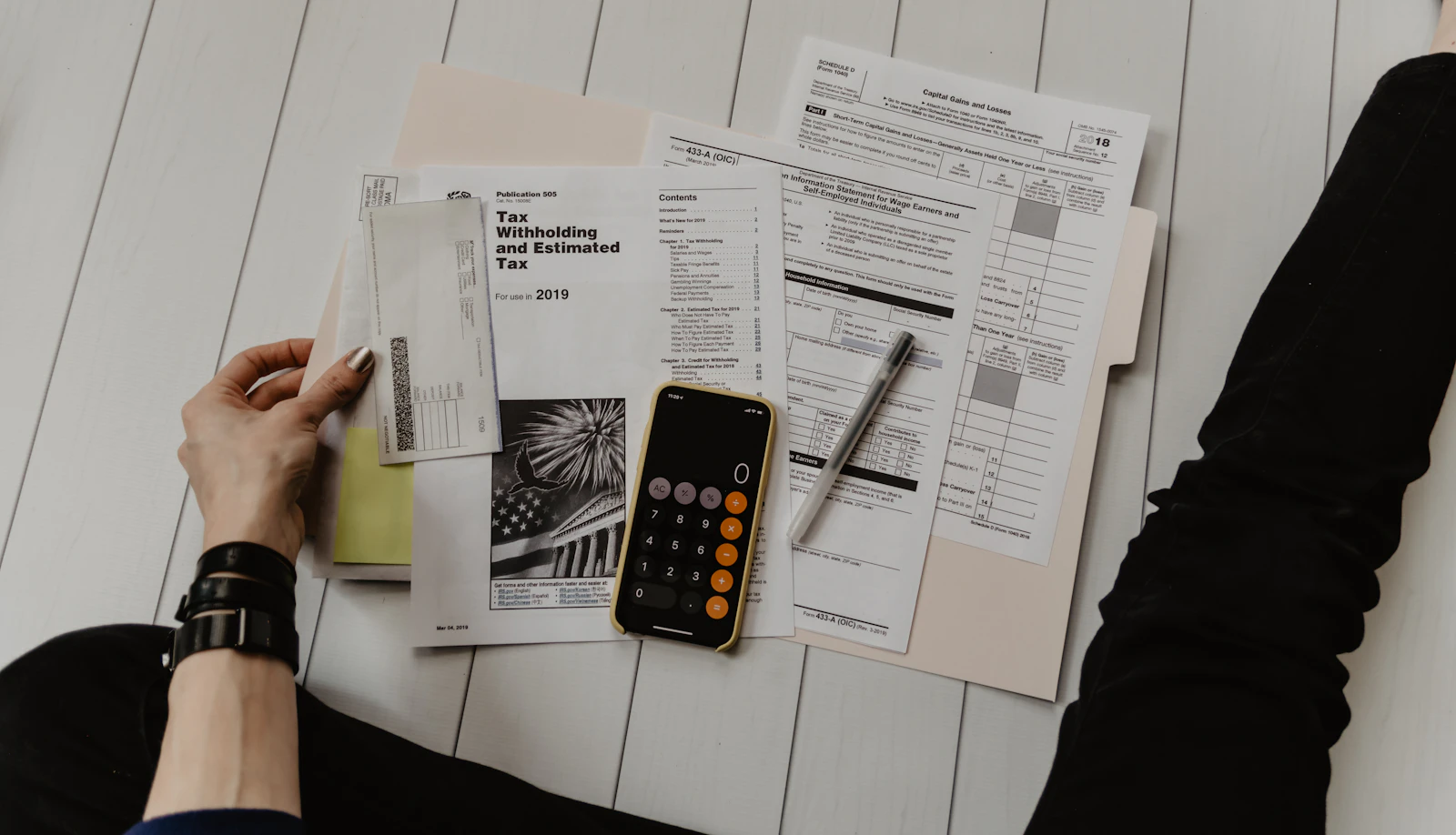
The Evolution of the Reinstatement Form
When a local business owner logs into their dashboard and sees the dreaded red suspension banner, the first instinct is to frantically search the internet for a solution. Inevitably, they will look for the Google Business Profile reinstatement request form. For years, this specific form was the holy grail of local SEO—a hidden, multi-page questionnaire that served as the only gateway to communicate with Google's support team and beg for your listing back.
However, as the premier GMB Expert in India, I must clarify a massive shift in Google's architecture. The old, standalone "form" that you could bookmark and share via a direct URL has been radically transformed. To comply with new European Union digital regulations and to crack down on massive spam networks, Google has integrated the traditional reinstatement request form directly into an in-dashboard workflow. Understanding how to locate and properly utilize this new digital interface is the absolute key to your survival.
The transition from a simple, web-based questionnaire to a complex, timed, AI-driven interface has caught millions of business owners off guard. In the past, you could access the reinstatement form, leave the tab open for three days while you searched for your utility bills, and slowly fill out the text boxes. You could submit multiple forms if you felt like Google was ignoring you. That era of leniency is completely over.
Today, the request form is deeply embedded within what is now officially called the Google Business Profile Appeals Tool. When you initiate this new form, you are essentially stepping into a highly restricted digital courtroom. The system will force you to authenticate your account, select the suspended profile, and then—critically—it will impose a strict 60-minute time limit for you to upload your evidence and state your case.
This comprehensive masterclass is designed to walk you through every single step of locating, preparing for, and executing the modern Google Business Profile reinstatement request form. We will cover exactly how the algorithm analyzes your submission, the precise legal documents you must gather beforehand, and the strategic narrative you must employ to ensure your profile is brought back online. Let's decode the system so you can reclaim your local search dominance.
How to Find and Initiate the Form
One of the most common questions I receive from panicked business owners is, "Where is the link to the form? I can't find it anywhere in the help center!" Google intentionally removed the direct public links to the old reinstatement request form to prevent spam bots from automatically flooding their queues with fake appeals.
To access the modern form, you must be logged into the exact Google account (Gmail or Google Workspace) that holds "Primary Owner" or "Owner" permissions for the suspended listing. Once logged in, simply search for "My Business" on Google Search or navigate to Google Maps. The dashboard will load directly in the search results (this is known as the NMX or New Merchant Experience).
Right above your business name, you will see a prominent red or orange alert box stating "Your profile is suspended." Inside that box, there is a button labeled "Appeal." Clicking this button is how you initiate the reinstatement request form. However, as I will explain in the next section, clicking that button before you are 100% prepared is the fastest way to permanently lose your listing. You must first fix the suspended Google My Business profile core errors before initiating the workflow.
The 6-Step Reinstatement Submission Process
Filing out the reinstatement request form requires absolute precision. You only get one initial shot to impress the AI and the human reviewers. Follow this exact 6-step blueprint to ensure your submission is flawless and approved on the first attempt.
The Pre-Submission Audit
You must never open the form until you have identified and fixed the policy violation that caused the suspension in the first place. Google expects you to review the guidelines and correct your profile data before appealing.
Check your business name for keyword stuffing. Ensure your address matches postal records perfectly. If you are a home-based business, ensure your address is hidden. Submitting the reinstatement request form for a profile that is still actively breaking the rules will result in an immediate auto-rejection by the algorithm.
Compress Your Evidence Files
The new form interface heavily restricts file uploads. You cannot upload a dozen separate images of your storefront and utility bills. You must compile all of your evidence (Trade License, GST, Utility Bills, Signage Photos) into a single, well-organized ZIP file or a combined PDF document.
Have this ZIP file prepared, compressed, clearly named (e.g., "BusinessName_Reinstatement_Proof.zip"), and saved to your desktop *before* you click the appeal button.
Initiate the Form & Select Profile
Click the "Appeal" button in your dashboard. The tool will launch and ask you to confirm the email address you are using. Next, it will display a list of all suspended profiles under your account.
Carefully click the radio button next to the specific profile you wish to reinstate. Double-check the address listed to ensure you are appealing the correct location, especially if you manage a multi-location franchise or operate a marketing agency.
Beat the 60-Minute Timer
Once you confirm the profile, the screen will transition to the "Add Evidence" phase. **You now have exactly 60 minutes to complete the form.** If you close the tab, lose Wi-Fi, or take too long, the form will submit automatically without your evidence, guaranteeing a rejection.
Drag and drop your pre-compiled ZIP file into the designated upload area and wait for the progress bar to reach 100%.
Draft the Compliance Narrative
Below the file upload, the form provides a text box limited to 1000 characters. This is not the place for emotion. Do not write, "Please help, I am losing money." The reviewers evaluate facts.
Write a concise, clinical narrative. Example: "Hello. We have reviewed the guidelines and audited our profile. We corrected our business name to match our legal documents. Attached is a ZIP file containing our Trade License, recent electricity bill, and unedited photos of our permanent storefront signage. We kindly request reinstatement."
Submit and Enter the Queue
Click submit. The status in your dashboard will change to "Submitted" or "In Review." From this moment forward, **do not make any edits to your profile.** Making changes while a reinstatement request is pending will reset your position in the queue or trigger a fatal error. Processing typically takes 3 to 7 business days depending on global ticket volume.
Diagnosing Penalty Types Before Appealing
The type of evidence you must provide in the reinstatement request form depends entirely on the severity of your penalty. You must diagnose whether you are facing a hard ban or a soft ban before compiling your ZIP file.
The Hard Suspension
Your listing is completely erased from Google Maps and Search. The algorithm doubts your physical existence. To win this reinstatement form, your evidence must overwhelmingly focus on proving physical occupancy: heavy reliance on utility bills, unedited storefront video tours, and government tax documents.
Read Hard Recovery GuideThe Soft Suspension
The listing is visible, but you have lost management access. The algorithm doubts your authorization to manage the entity, not the entity itself. Your reinstatement request form evidence should lean heavily on proving ownership: business registration documents showing your name as the owner, and domain registration receipts matching the profile website.
View Recovery GuidesThe Failsafe Evidence Protocol
The number one reason business owners fail the reinstatement request form is due to sloppy, incomplete, or unconvincing evidence. Google's support agents have seconds to review your file. If it is not immediately obvious that you are a legitimate, compliant business, they will reject it and move to the next ticket.
The Perfect Evidence Package
To guarantee success on your first attempt, your ZIP file must contain the following high-resolution, unedited documents, perfectly aligned with your dashboard data.
-
Official Government Registration You must provide undeniable legal proof of existence. This includes GST certificates, localized Trade Licenses, or official articles of incorporation. The business name on these documents must be completely identical to your GMB title.
-
Hardwired Utility Bills Provide proof of physical occupancy. Upload a recent electricity bill, municipal water bill, or landline internet bill (dated within 60 days) bearing the exact business name and exact physical address. Do not use personal mobile phone bills.
-
Photographic Context Evidence Provide visual proof that you are open to the public. Take wide-angle photos of your permanent exterior storefront signage showing the street, entrance, and neighboring buildings. Include interior photos showing office equipment and active operations.
If you lack standard utility bills due to shared leasing agreements, or if your business model is highly complex, do not guess. Retaining a dedicated Google Business Profile reinstatement service ensures that experts compile your evidence correctly, draft the legal narrative, and navigate the form securely on your behalf.
Dealing with Form Rejections
What happens if you submit the reinstatement request form, wait a week, and receive an email stating your profile is "Not Approved"? This is the most dangerous scenario in local SEO. The automated tool will likely lock you out, preventing you from submitting a second form. The algorithm now views your business as an active spam threat that failed compliance verification.
Do Not Submit Duplicate Tickets
Your first instinct will be to search for hidden contact links and spam Google Support with multiple duplicate requests. **Do not do this.** The AI will detect the duplicate tickets, merge them, and permanently blacklist your Gmail account for abuse. Instead, you must locate the "Case ID" from your rejection email. You must use this specific ID to initiate an executive escalation. By routing your upgraded evidence (including continuous storefront video) through authorized agency channels or Product Experts on the community forum, you can bypass the locked form and force a manual, human review to overturn the rejection.
Frequently Asked Questions
Click to reveal expertly verified answers regarding the reinstatement request form process.
How long does it take for Google to reply to the reinstatement form?
Can I expedite the reinstatement form process?
What happens if I miss the 60-minute window to upload files?
Can I just delete my suspended listing and make a new one?
Nationwide Form Submission & Recovery Operations
Sanket Rathod GMB Expert In India securely prepares evidence packages and navigates the reinstatement request form for clients across the subcontinent.


